Added January 2026
Minimum Hours Business Rule Validation
We’ve added a new feature to help ensure employees meet their required monthly hours. This is especially useful for government contractors and organizations with strict timekeeping requirements.
Where to Find It:
Settings > Timesheet > Minimum Hours Validator Rule
How It Works:
- Admins can set a minimum total hours per month, including hours worked, PTO, and holidays.
- The system totals all approved timesheets in the month and checks against this minimum.
- If an employee’s total hours fall below the required threshold, the system will notify them to adjust their entries.
Benefits:
- Ensures compliance with billing and internal requirements.
- Helps maintain profitability and accurate reporting.
- Reduces the risk of underreported hours.
Screenshots:

If you have any questions or encounter issues while using this feature, please contact support
Added December 2025
Improved Timing of Year End Carry Over Rules and New Year Accruals
We want to make you aware of a change in system behavior from last year.
What’s Different This Year:
Before the system can process your new year balances, all timesheets for the pay period that overlaps the end of 2025 and beginning of 2026 must be either:
- Submitted by the employee, OR
- Approved by an admin or supervisor
Why this change was made:
The system now processes balances in a specific sequence to ensure accuracy and prevent balance calculation errors:
- Employee submits timesheet (or admin/supervisor approves it)
- System applies year-end carryover rules (including any carryover caps)
- System grants new year accruals
This sequencing ensures that your carryover caps are applied correctly before new grants are added.
What you need to do:
Please ensure all employees have submitted their timesheets for the period ending in late December/early January. Once those timesheets are submitted or approved, the system will automatically:
- Apply your carryover rules and caps
- Grant the new year’s PTO/holiday allocation
If you’ve already completed timesheet submissions and are still not seeing updated balances, please let us know.
Added October 2025
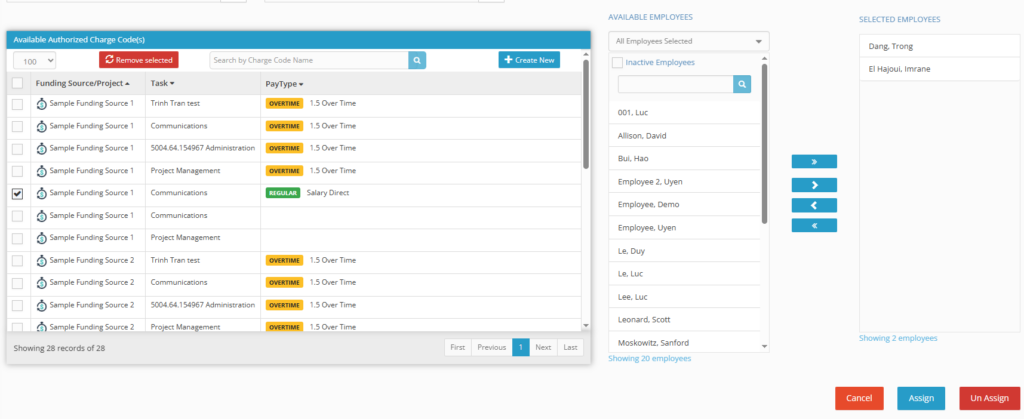
Bulk Charge Code Unassignment
-
- To get started, navigate to Accounting > Codes (as shown in the image).
- Action: Check the box next to the desired charge code(s) under the “Available Authorized Charge Code(s)” section. On the far right, you can then manage the unassignment process for the Selected Employees.
Note: Use the Unassign button at the bottom right to remove the code from all selected employees or use the single arrow < to unassign users one at a time.
Bulk Leave Assignment
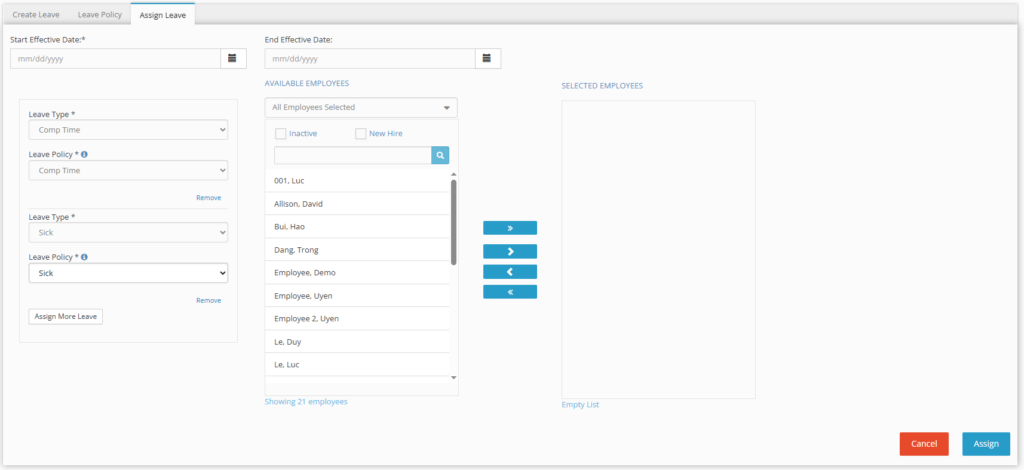
Hour Timesheet now allows you to bulk assign leave types and policies to users in a single transaction, significantly reducing the administrative time required for onboarding or policy changes.
- To get started, navigate to Accounting > Leave > Assign Leave (as shown in the image).
- Action:
- Select the desired Start Effective Date and End Effective Date.
- Select the first Leave Type and Leave Policy.
- Click Assign More Leave to add additional Leave Types (e.g., Sick, Vacation, Comp Time) to the same transaction.
- Select the employees from the AVAILABLE EMPLOYEES list and move them to the SELECTED EMPLOYEES column.
Note: The effective dates you choose will apply to all leave types assigned in this single bulk assignment process. Be sure to click Assign in the bottom right corner when you are finished!
Added August 2025
Custom Attestation Statements
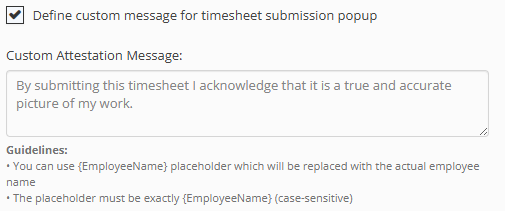
Hour Timesheet now allows you to create custom attestation statements that employees must acknowledge when submitting their timesheets, reinforcing accountability and supporting your compliance requirements.
To customize the message, navigate to Settings > Timesheet and edit the attestation text (you can use {EmployeeName} as a placeholder to include the employee’s name). All signed attestations are automatically logged in the audit trail and included in exported PDFs for complete recordkeeping.